Custom White Balance with a Gray Card
Author: Fiat Lux Guides Editorial Team Reviewer: Fiat Lux Guides Editorial Team Most recently reviewed First published Filed under Color and White Balance
Custom white balance calibrates your camera's color baseline to the exact light falling on your subject by measuring a neutral gray or white card in the scene. Unlike presets or Auto White Balance, it corrects both Kelvin warmth and green-magenta tint shifts at once, making it essential for video, JPEG shooting, and LED lighting.
Belongs to the guide: Color Temperature and White Balance Explained
Checked by Fiat Lux Guides’ editorial desk against the cited sources.
Setting a custom white balance with a gray card is the fastest way to lock in accurate, repeatable colors before you start shooting. While presets and Auto White Balance are useful starting points in our color temperature and white balance workflow, they only guess what the light in your room looks like—and presets cannot correct green or magenta spikes from budget LEDs.
By showing your camera a spectrally neutral gray or white reference under the exact light hitting your subject, you give the camera a real measurement of both color warmth and tint. That matters especially for video, JPEG workflows, and scenes with mixed lighting color casts.
Why use a gray card instead of Auto White Balance or presets?
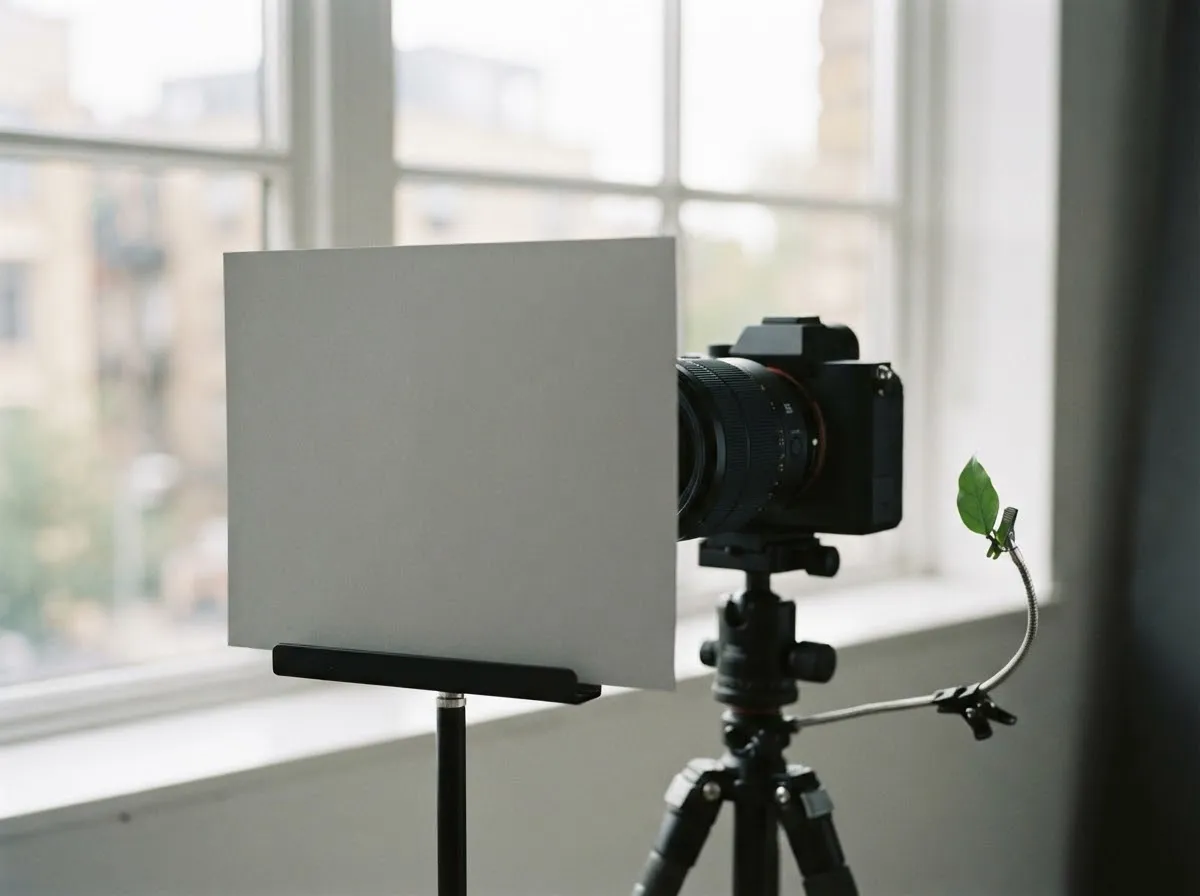
Auto White Balance (AWB) shifts color from frame to frame whenever a brightly colored shirt, backdrop, or wall enters the shot. Presets like Daylight or Tungsten lock the color temperature, but they assume an ideal light spectrum and ignore green-magenta shifts (which we cover in Kelvin vs tint).
A neutral gray card solves both problems at once:
- Consistent across shots: Once registered, every frame uses the exact same baseline until your lighting changes.
- Corrects both axes: As Sony’s ZV-E1 Help Guide documents, capturing a custom white balance measures and stores both the Color Temperature (Kelvin) and the Color Filter (green-magenta tint) offset.
- Saves post-production time: Even if you shoot RAW (see RAW vs JPEG white balance), starting with an accurate in-camera custom white balance keeps your camera previews, histograms, and batch edits consistent.
White card vs 18% gray card: which should you use?
Both neutral white cards and neutral 18% gray cards work for custom white balance, as long as they are color-neutral and matte. The key requirement is not brightness—it is spectral neutrality, meaning the surface reflects red, green, and blue wavelengths in equal proportions.
- Avoid regular printer paper: Standard office paper often contains optical brightening agents (fluorescent dyes that glow slightly blue under UV light), which tricks the camera into warming up the image unnecessarily.
- Gray cards prevent highlight clipping: Under bright strobes or sunlight, a pure white card can easily clip one or more RGB channels if overexposed, causing inaccurate readings. A matte neutral gray card sits safely in the middle tones.
Step-by-step: how to set custom white balance in-camera
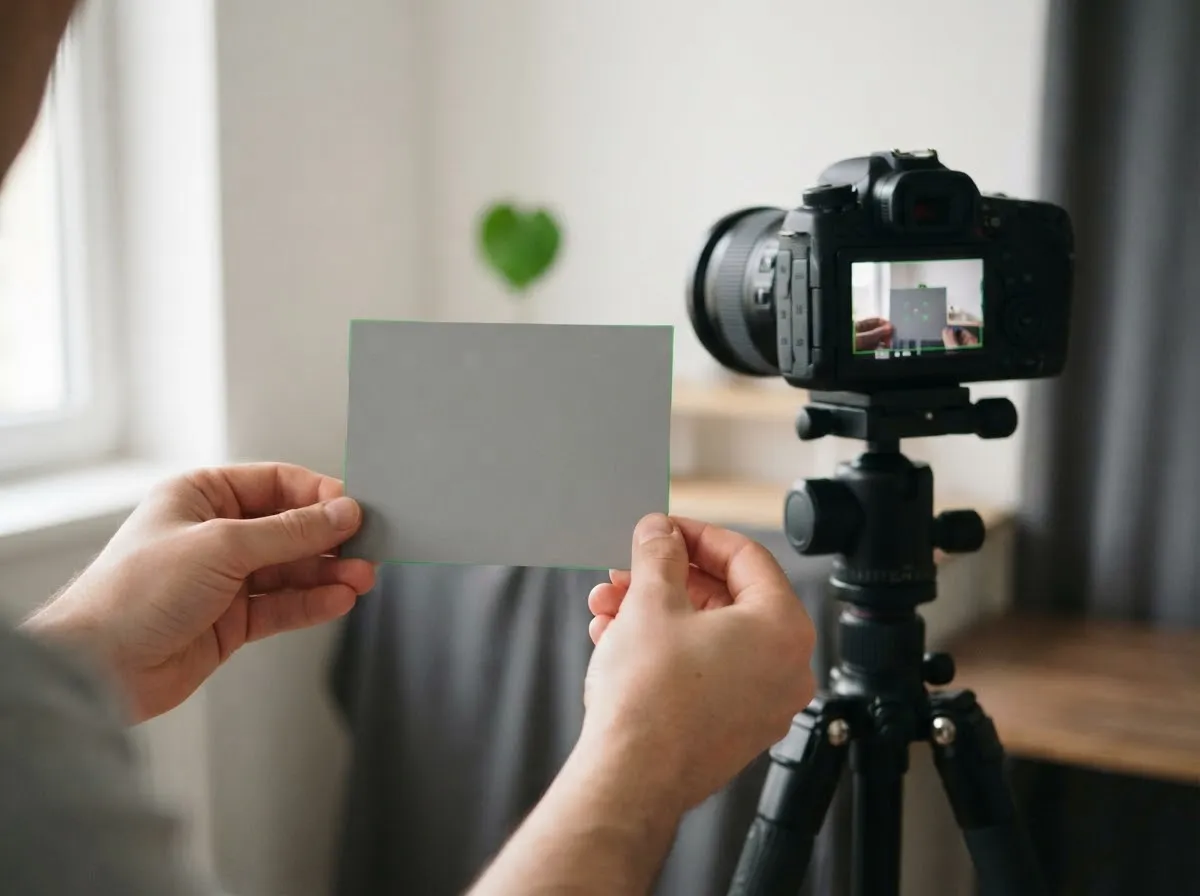
Exact menu names vary by camera brand, but the physical workflow is the same across Canon, Sony, Nikon, and other interchangeable-lens cameras.
1. Place the gray card in the subject’s light
Hold or prop the gray card where your subject’s face or product will be, facing the camera and receiving the same key light, fill light, and ambient spill. Do not stand in a shadow or tilt the card toward a colored wall.
2. Fill the measurement frame and expose normally
Aim your camera at the card so it fills the center target area (or the full frame, depending on your camera). Use a normal, non-clipped exposure—Canon’s EOS R1 manual notes that if exposure is far from standard, accurate white balance may not be obtained. You do not need sharp focus on the card; slightly defocusing even smooths out paper texture.
3. Capture and register the custom white balance
- On Canon (e.g., EOS R1 / R5): You can either shoot a reference frame of the card and import it under
Set Custom WB, or use the liveRecord and register WBoption directly from the menu or Quick Control screen. Canon lets you store up to five custom white balance slots, and advises registering separate ones for stills and movies. - On Sony (e.g., ZV-E1): Open
MENU -> Exposure/Color -> White Balance, selectCustom 1,Custom 2, orCustom 3, choose the custom white balance set option and press the center of the control wheel, make the white area fully cover the capture frame, and press the center again. Sony then displays the calibrated Color Temperature and Color Filter values.
4. Select that custom slot before shooting
Registering the data alone does not always switch your active mode. Confirm that your camera’s White Balance is actually set to the Custom slot you just saved, and remember to re-measure if you dim a bi-color LED, move near a window, or change modifiers.
Common mistakes when using a gray card
- Calibrating with ambient light when shooting with flash: Sony’s manual specifically warns that if you fire a flash during custom white balance capture, that slot is calibrated for flash—and you must use the flash whenever you recall it. Conversely, if you calibrate under room lamps and then turn on a studio strobe, the color will be wrong.
- Leaving the card tilted toward the ceiling or floor: Tilting a card upward measures ceiling bounce; tilting it sideways measures wall spill. Keep it upright and aimed toward the lens axis.
- Expecting one gray card reading to fix two different lights: A gray card corrects the combined light hitting that single spot. If a warm tungsten lamp hits the left side of your subject and cool daylight hits the right side, no single white balance can neutralize both—you must match the lights first using our Kelvin color temperature chart.
Can you fine-tune custom white balance afterward?
Yes. Both Canon (WB Shift/Bkt.) and Sony (the fine-adjustment grid accessed by pressing right on a Custom WB slot) let you nudge your custom white balance slightly warmer, cooler, greener, or more magenta if you want a subtle creative bias while keeping the neutral baseline intact.
For more on how camera settings and light quality interact, see white balance explained and our verification process.
Common questions
Should I use a white card or an 18% gray card for custom white balance?
Either a spectrally neutral white balance card or a neutral gray card works, provided it is manufactured without optical brighteners and reflects red, green, and blue light equally. Avoid ordinary printer paper, which often contains fluorescent whitening agents that skew blue. A matte neutral gray card is less likely to clip highlights under bright studio lights.
Where do I hold the gray card when setting custom white balance?
Hold the card at your subject's exact position, angled toward the camera and lit by the same key and fill lights you will use for the shot. If you step into a different shadow or tilt the card toward a colored wall, the camera will calibrate for the wrong light.
Does custom white balance fix green or magenta casts from LEDs?
Yes. Unlike dialing in a Kelvin number alone—which only shifts the blue-amber axis—custom white balance measures the full RGB response of the neutral target. As Sony's ZV-E1 manual notes, the camera calculates both a Color Temperature (Kelvin) value and a Color Filter (green-magenta) offset.
Can I use custom white balance when shooting video?
Yes, and it is even more important in video than in still photography. Most consumer video codecs bake white balance into compressed 8-bit or 10-bit footage, leaving far less room to fix color casts later than a still RAW file. Canon and Sony cameras let you register custom white balance directly in movie mode.
Why did my camera say custom white balance capture failed?
As Sony's Help Guide explains, a capture-failed message (Capturing of the custom WB failed) appears when the captured value falls outside the expected range—for example, if the subject is too vivid. Reframe so the neutral card fills the capture frame and try again at a normal exposure.
What we checked
- Canon EOS R1 Product Manual: Custom White Balance Registration, checked 2026-11-14 (cam.start.canon)
- Sony ZV-E1 Help Guide: Capturing a Standard White Color (Custom White Balance), checked 2026-11-14 (helpguide.sony.net)
- Canon EOS R5 Product Manual: White Balance Correction (WB Shift/Bkt.), checked 2026-11-14 (cam.start.canon)
You might also like
- Color Temperature and White Balance Explained
Learn Kelvin color temperature, camera white balance presets, green/magenta tint, CRI vs TLCI, and how to prevent mixed-lighting color casts.
- CRI and TLCI Explained: Color Accuracy of Lights
Understand what CRI and TLCI measure, why CRI can miss red skin tones on LEDs, and what TLCI scores mean for photo and video.
- Kelvin vs Tint: Fixing Green and Magenta Color Casts
Learn the difference between Kelvin color temperature and green-magenta tint (Duv), why LEDs shift green, and how to fix color casts.
- Lighting Gels: CTO and CTB for Color Matching
Match tungsten, daylight, and LED sources using CTO and CTB lighting gels, mired shift math, and light transmission loss.
- Matching LED Lights to Daylight
How to match LED video and photo lights to window daylight using Kelvin presets, mired shifts, and camera white balance without mixed color casts.
- Mixed Lighting and Color Casts: Why Skin Looks Orange or Blue
Fix orange and blue color casts caused by mixing window light, household lamps, and LEDs. Learn how to match light color temperatures on set.